The editing desk: Super Edit
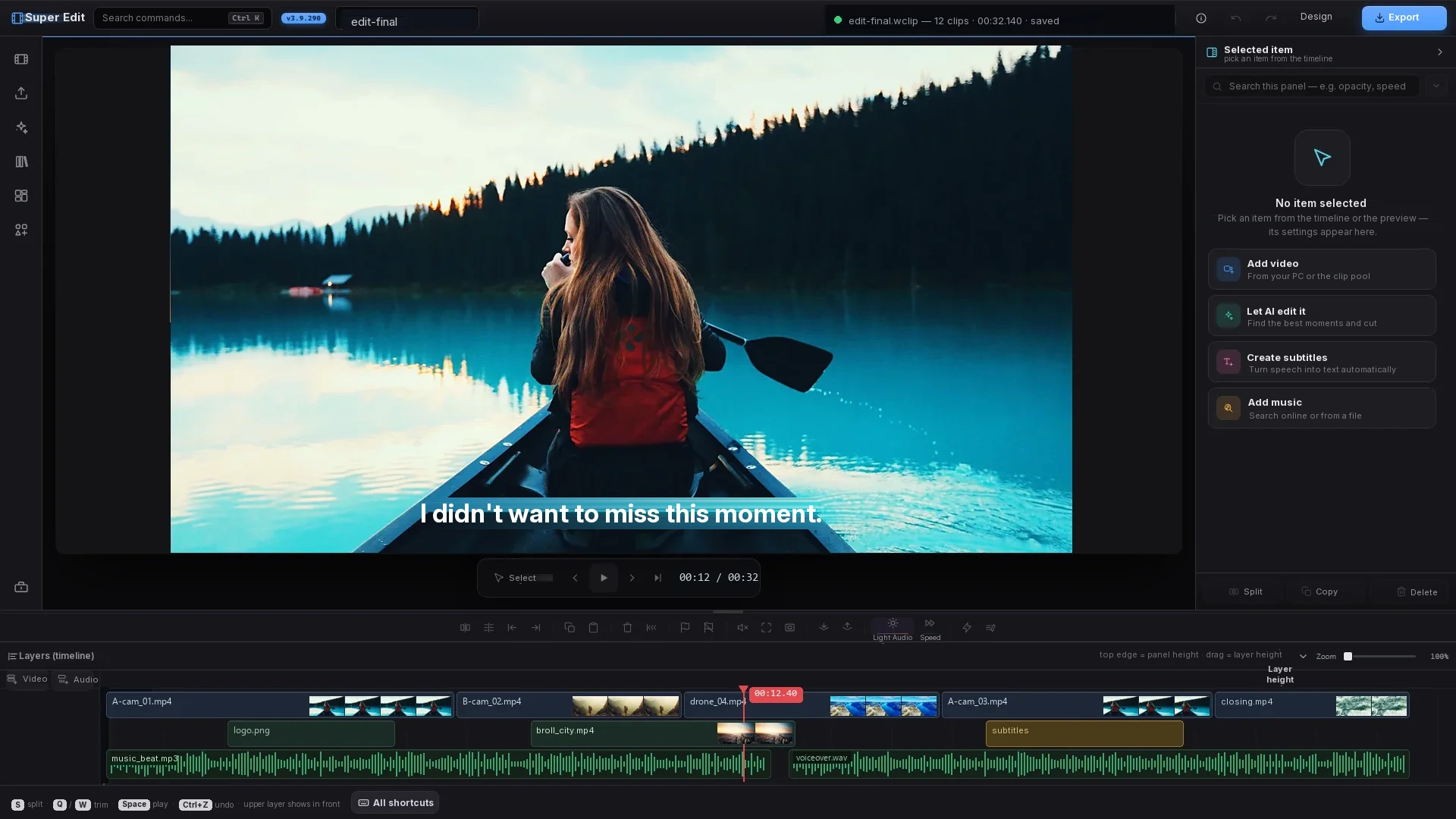
A multi-track timeline, real-time preview and hardware-accelerated rendering — the shot below comes from a real session.
The edit — let the AI do it
14 raw minutes → 3.5: the best moments are picked and the silences cut automatically.
Let it write the subtitles
Speech becomes time-stamped lines; style, position and translation are yours.

The frame follows the face
When a landscape video becomes vertical, the camera follows the person on its own.
 SOURCE · 16:9 · camera panning
OUTPUT · 9:16
SOURCE · 16:9 · camera panning
OUTPUT · 9:16
The cuts land on the beat
Musical beats are detected, and the cuts change exactly with the rhythm.
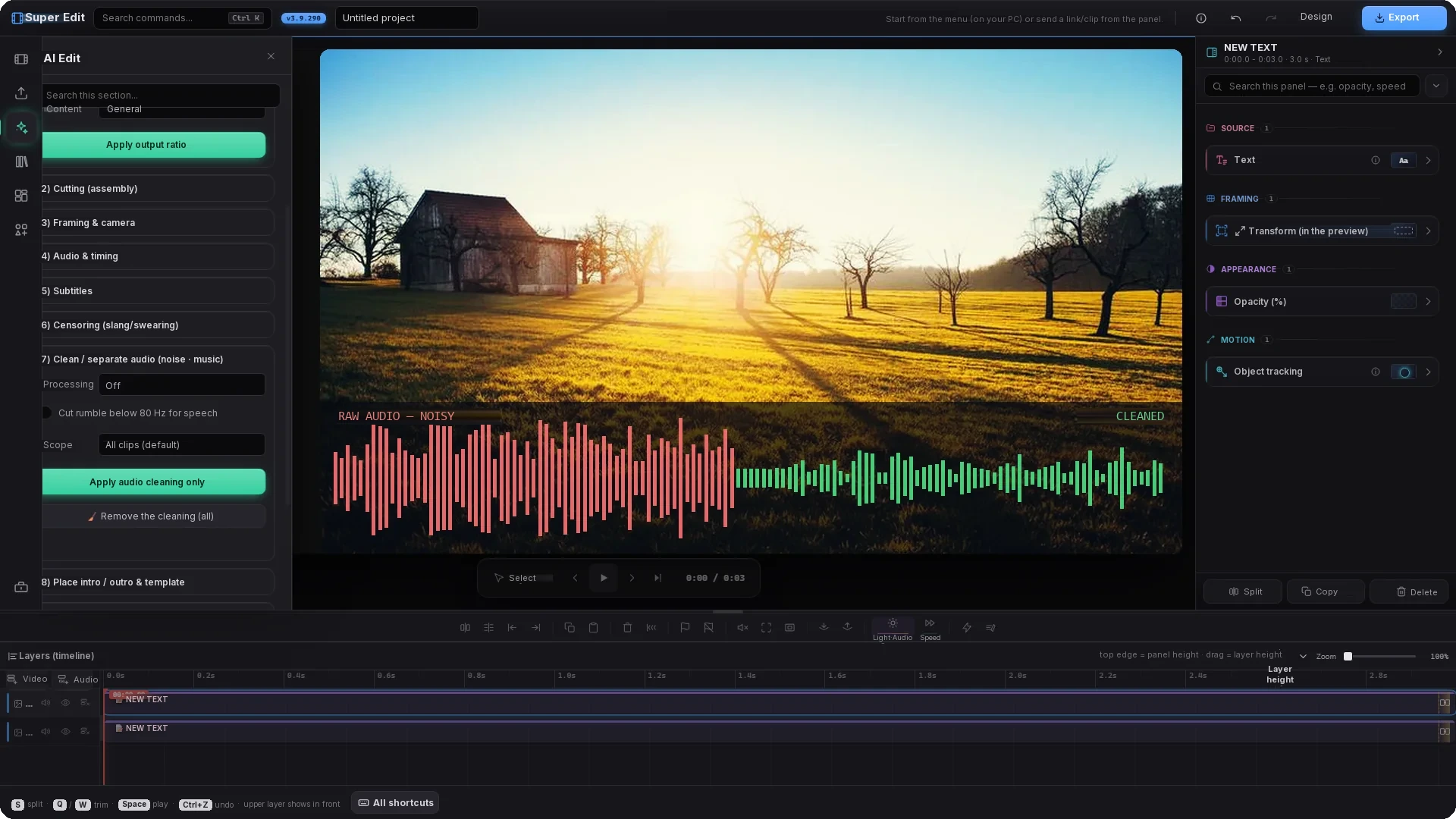
The real interface — four settings at work
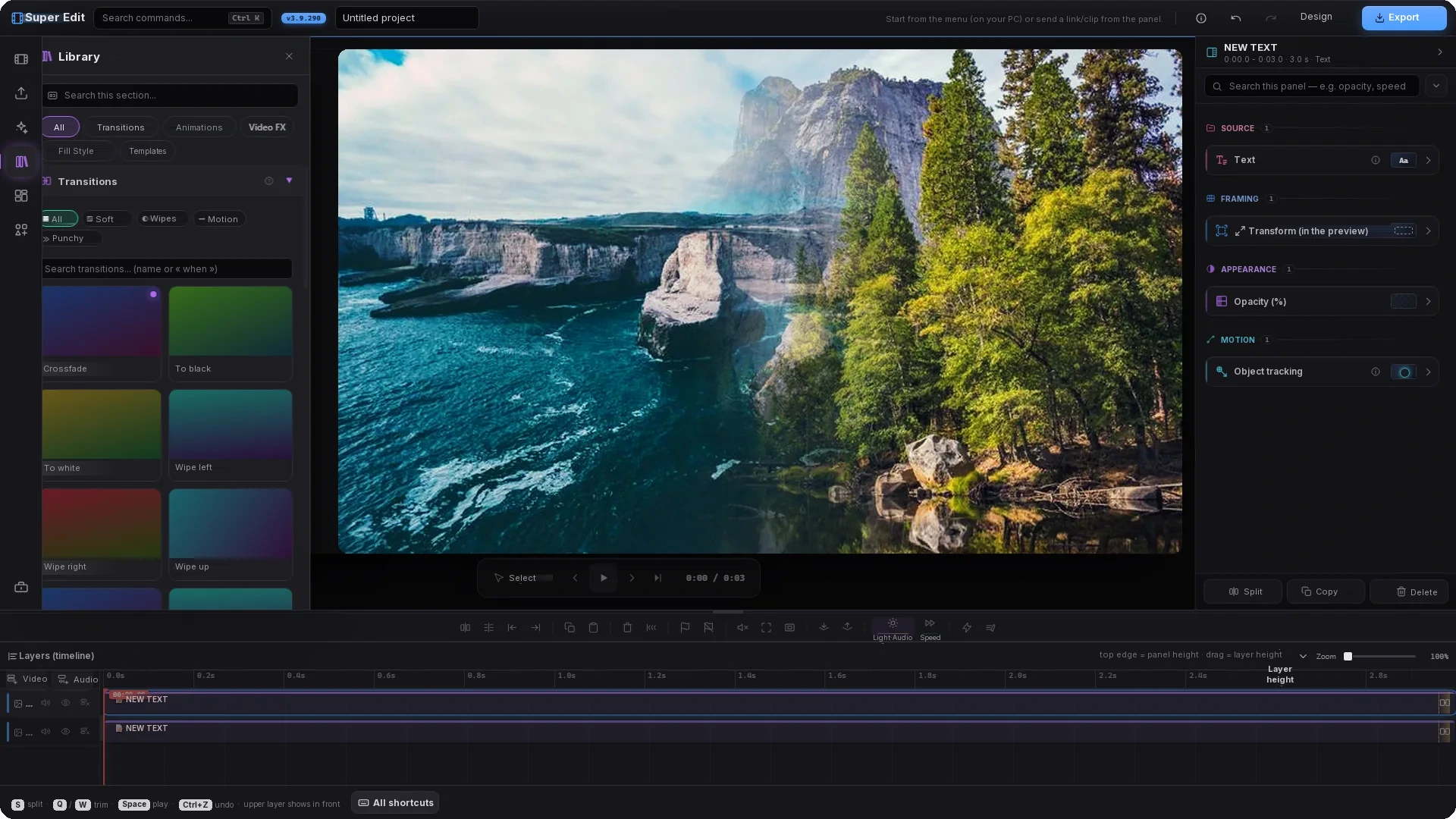
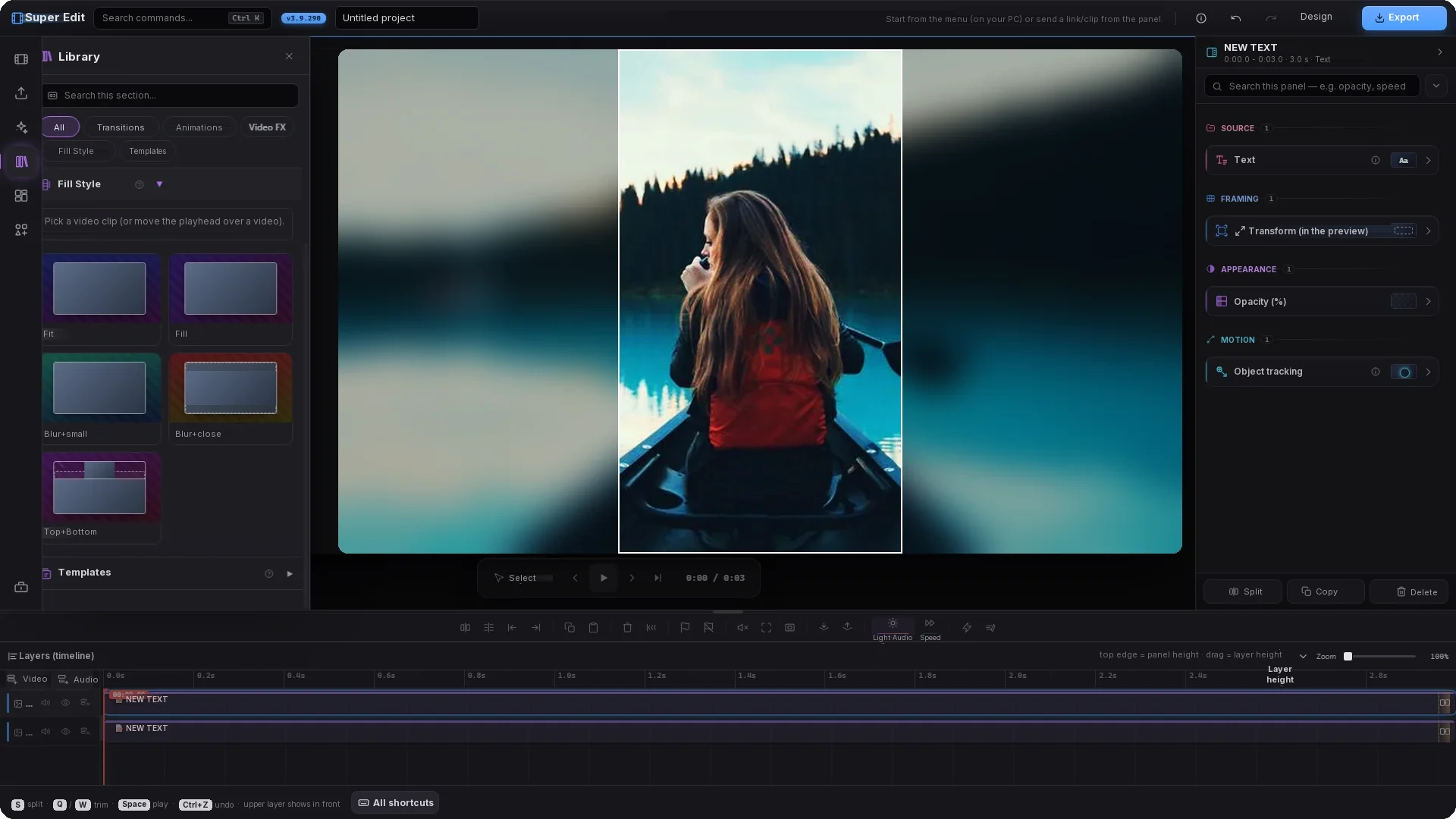
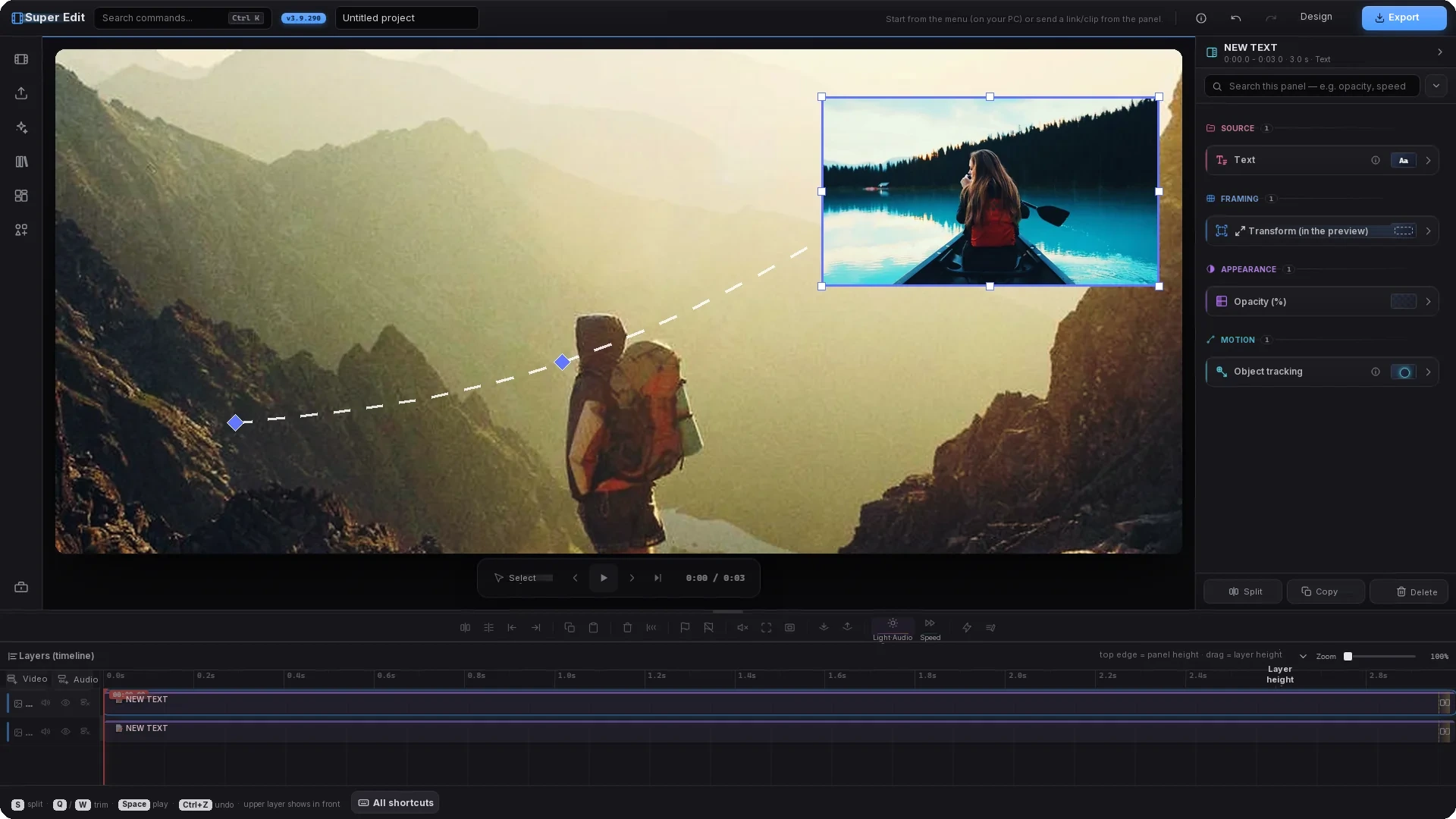
These four shots come from Super Edit itself: the panels on the left, the settings list on the right and the layers below are the real interface. The footage on the canvas is illustrative. The app itself ships with a Turkish interface — the labels in these stills were translated for this page.
Layout and composition
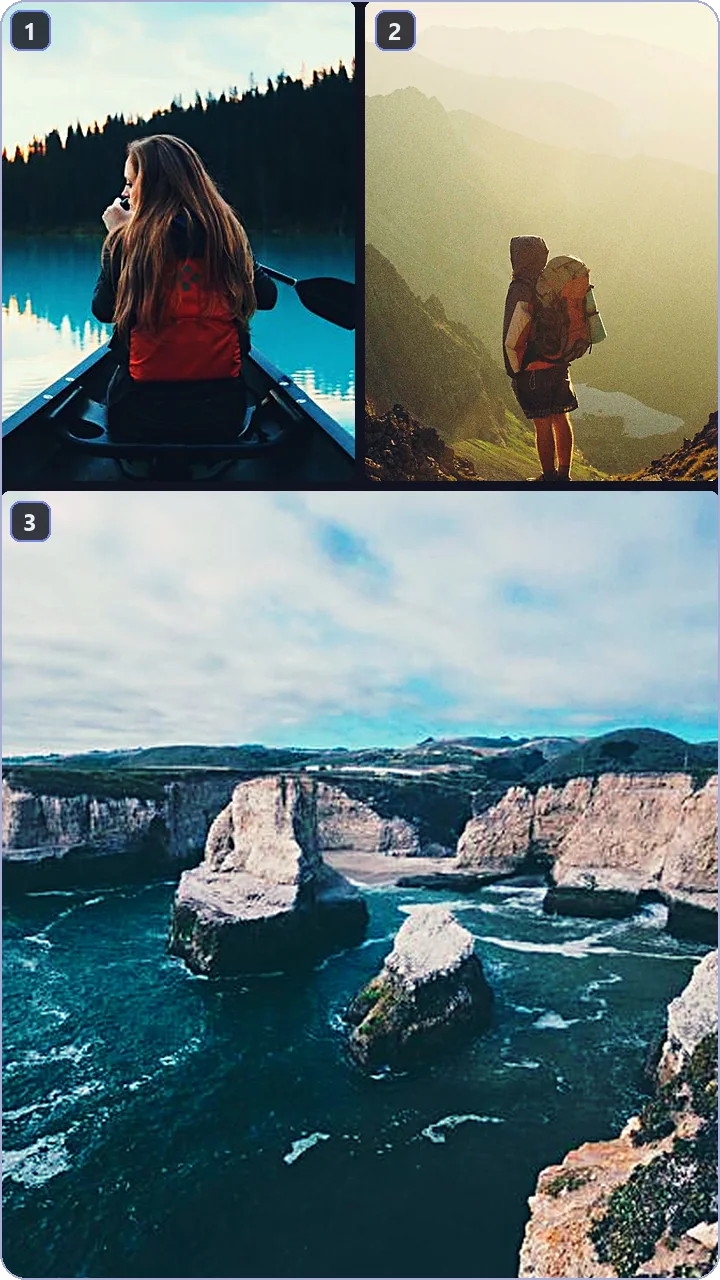
Split, layer and align clips on a single canvas. Fill the preset however you like: a different clip in each panel, or several crops of the same clip — at 16:9, 1:1, 9:16 or any size you want, with nothing squashed.
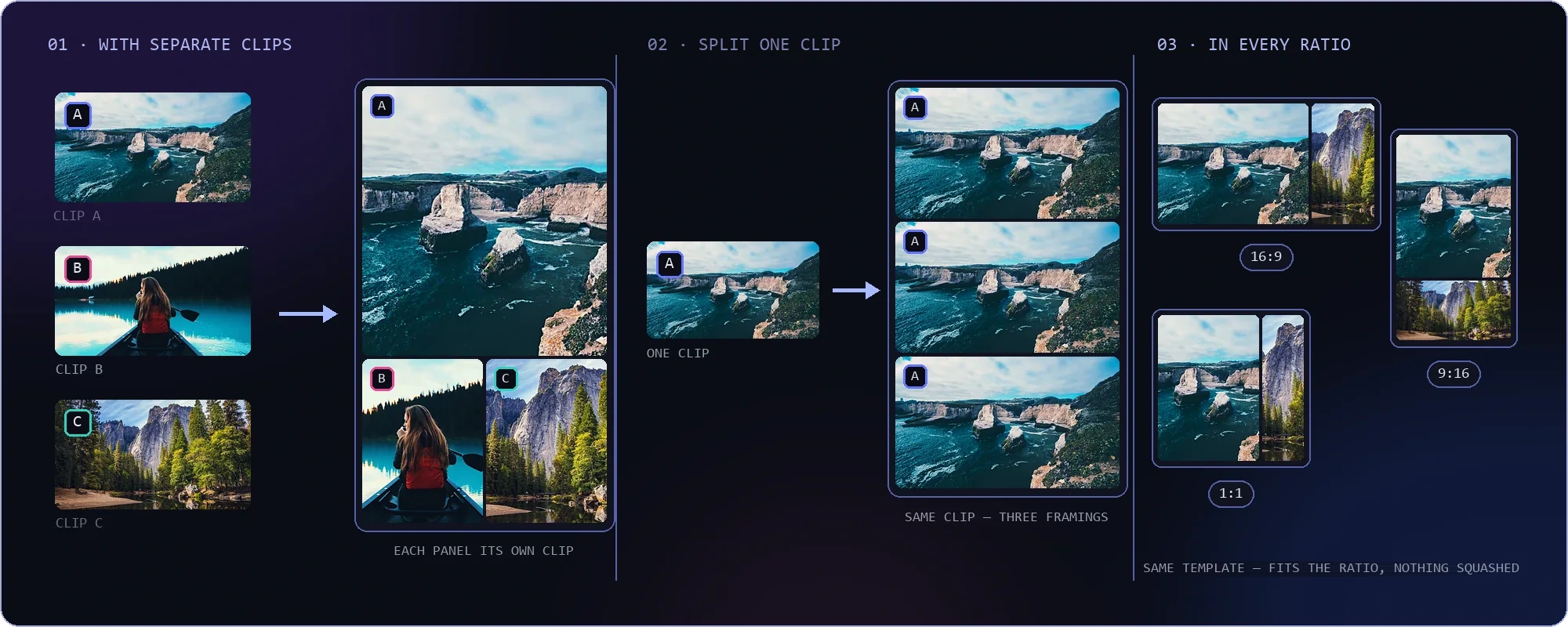
HOW TO FILL A PRESET — SEPARATE CLIPS (A·B·C) · DIFFERENT CROPS OF ONE CLIP · AT ANY RATIO
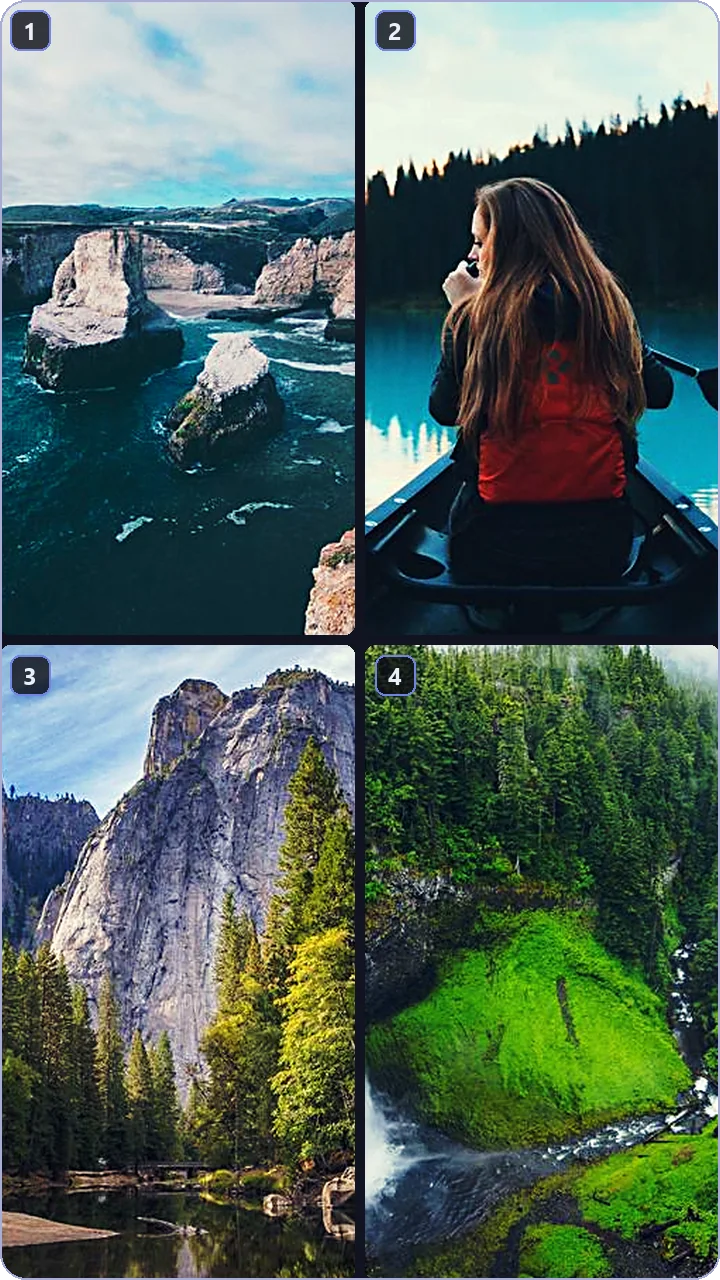
PICK A READY-MADE PRESET — ALL 10 IN THE APP · SAME CLIPS, TEN DIFFERENT LAYOUTS (9:16)
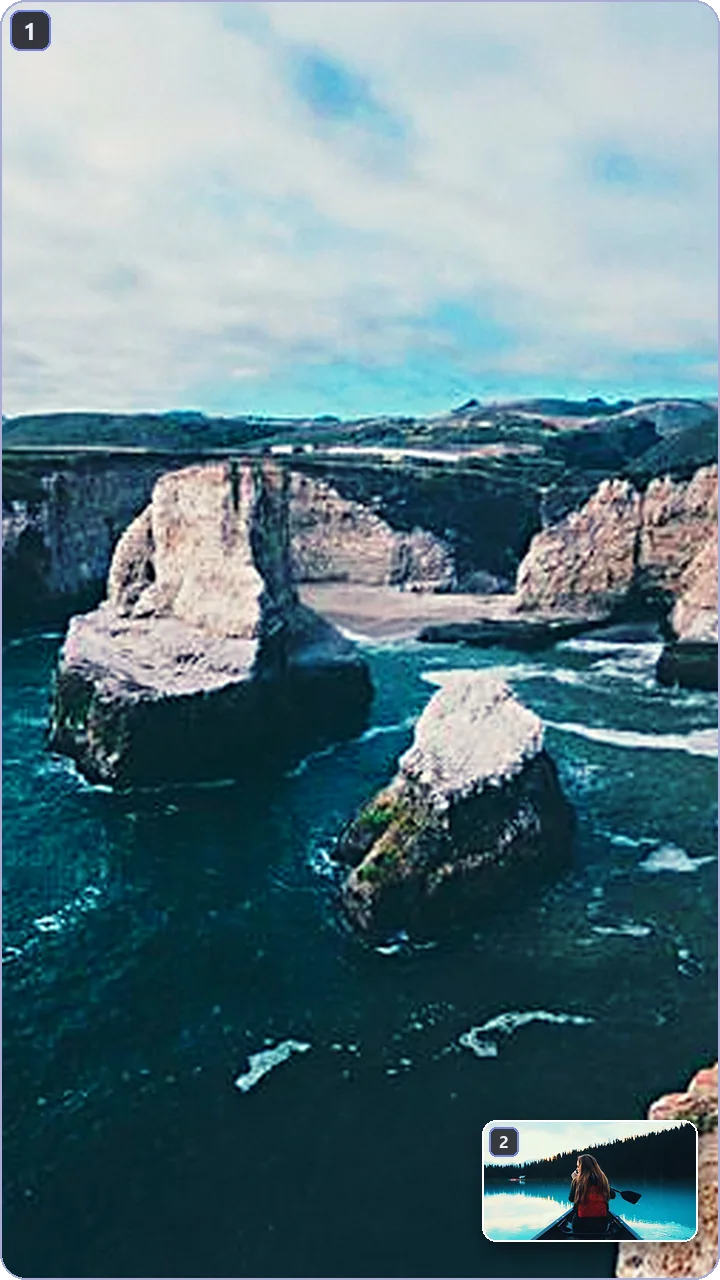
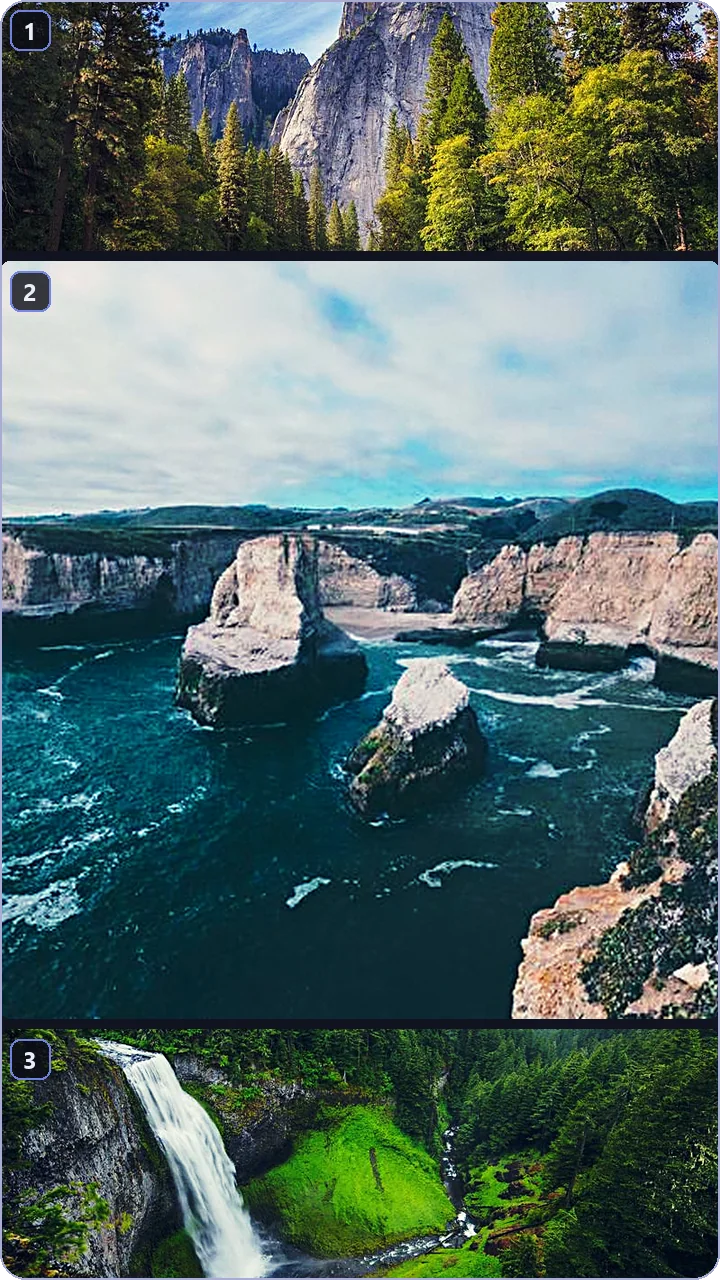
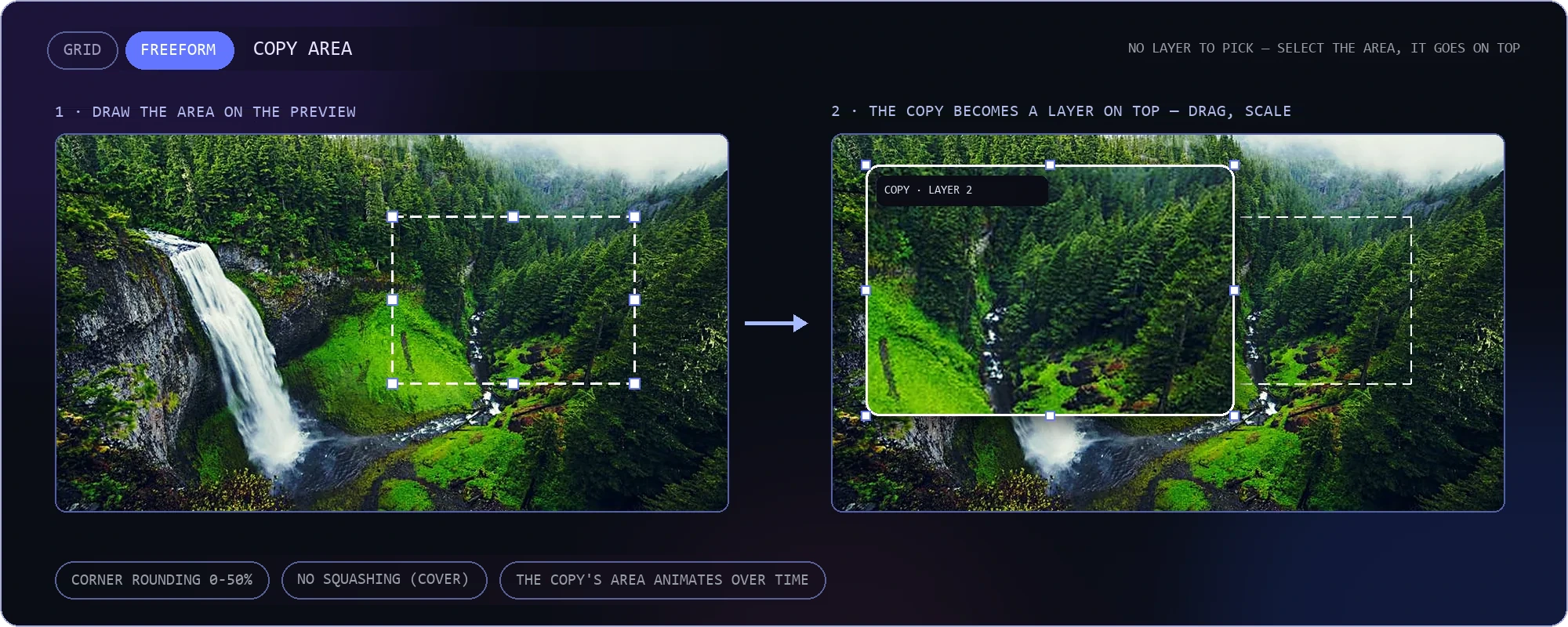
SECOND MODE: FREEFORM — DRAW AN AREA IN THE PREVIEW AND IT IS COPIED ON TOP AS ITS OWN LAYER; DRAG, SCALE, ANIMATE
Draw on top of the video
Arrows, circles and freehand strokes play along with the recording — made for lessons and sports commentary. Every stroke is tied to time: it appears when you want and disappears when its time is up.
In bulk — all at once
Apply a setting to every clip you selected, not just one — subtitles, colour and ratio all queue up in a single pass.
 waterfall_02.mp4✓
 coffee_03.mp4✓
 studio_04.mp4✓
 field_05.mp4✓
Censoring that follows its target
The blur stays on the area you picked even as it moves — a face, a plate, a screen.
Before and after: one chain
Colour, chroma key, blur and glow are applied in order; compare the result instantly with the slider.
Speech calls in the B-roll
Cutaway footage that matches the idea being spoken is found and dropped onto the right second by itself.
It cleans the audio for you
Noise is reduced with one click, and speech is separated from music.
Dubbing and translation — right in the editor
Speech is translated into one of 13 languages and read again in an AI voice; the music and effects stay where they are, and each speaker gets a voice of their own. When you press «APPLY», the «Dubbing & Read aloud» group of Auto Edit dubs every clip or only the selected one, and can burn the dubbed text in as subtitles too. Undo brings the original sound back.
Every text gets a voice
At the end of «APPLY», every text item on the timeline can be read aloud, and each selected text also has a «Voice it» button in the right panel. While a reading plays, the other sounds dip — in the preview and in the exported video.
Search from the editor — video, music, images
Search all three without leaving the edit: new footage, music that arrives as MP3, and images that land on the scene as a layer. The logic never changes — type, preview, and one click drops it into your project.
The rest of the app
Paste the link, pick the section, pick the format — the app handles the rest.
Open 02 Live clip captureCatch the moment you missed without rewinding — the clip lands straight on the editing desk.
Open 04 One link, four outputsSet the app up around your own workflow, so you never repeat the same work twice.
Open 05 Three more editorsBuild your thumbnail, your multi-panel video and your free collage without leaving the app.
Open
Download Weorclip — free
Link downloading, live clip capture and Super Edit — one install, all on your own computer.
Download — Windows 10/1152 MB · ~2 MIN TO INSTALL · NO ACCOUNT NEEDED