STEP 04 · SETTINGS
Editing & Subtitles
Framing, censoring, dubbing, speed and audio; then the subtitles themselves — their look, the smart extras and the language. The subtitle settings work while «Burn subtitles into the video» is on.
21SETTINGS
Picture and sound9 SETTINGS
EN → TR
AUTOMATIC · FEMALE VOICEBunu kimse bilmiyordu.
13 LANGUAGES · 7 VOICE OPTIONS
Dubbing
Speech is translated into one of 13 languages and read again in an AI voice; the music and effects stay where they are, and each speaker gets a voice that matches their pitch.
- Turkish
- Spanish
- German
- Japanese
- Arabic
- +8 languages
- Automatic — suited to the speaker
- 6 preset voices
Framing and censoring4 SETTINGS
SOURCE 16:9
9:16
Off — crop from the centreCUT
3 OPTIONS · VERTICAL OUTPUT
Face framing
Who the frame stays on in vertical output: Smart holds on the speaker's face and cuts when the speaker changes; Face tracking smoothly follows a person on the move.
- Off — crop from the centre
- Smart (face)
- Face tracking
ON / OFF · 4 SETTINGS
Camera zoom effect
The app finds the real camera cuts, and the picture eases in on every new shot. Very short shots get no zoom.
- Subtle 8%
- Medium 12%
- Pronounced 18%
- Snap zoom: every 4 · 6 · 8 shots
- In · out · alternating
- Together with face framing
GAME STREAMWhat a d**n game!
Audio: BleepStrength: Normal
AUDIO + SUBTITLES · 3 LEVELS
Slang and swearing censor
Swearing and slang are caught with an English and Turkish word list; the audio gets a bleep or is muted. Words you want left alone go on a list of their own.
- Bleep
- Mute
- Leave the audio alone
- Strong swearing only · normal · everything
- Safety margin
- Bleep level
- Extra words
- Never censor
HOW IT LOOKS IN SUBTITLESFirst and last letter
5 STYLES
Hide it in the subtitles too
The censored word is masked in the subtitles as well: first and last letter, stars, a block, [beep] or removed entirely.
- d**n — first and last letter
- ***** — stars
- █████ — block
- [beep]
- Remove the word
Audio and speed4 SETTINGS
DOCUMENTARY
Dubbed voice
♀ ♂ automatic
Full dub✓ listened back 1/30
2 TYPES
Full dub or voice-over
In a full dub only the new language is heard; in a voice-over the original sound carries on quietly underneath. Every sentence read is listened back and checked.
- Full dub
- Voice-over dub
- Music and effects are kept
- Speech is never cut off
1.0×
10-minute video → 10 minpitch is preserved
0.1× – 8.0×
Change the speed
The slider snaps to preset values; type an exact value into the box. Pitch is preserved when speeding up — speech gets faster, voices don't get squeaky.
- 0.25× slow motion
- 0.5×
- 1.0×
- 1.25×
- 2.0× summary
- 4.0× time-lapse
Clip 1 quiet
quiet
Clip 2 peaking
Clip 3 medium
Normalise: off2-pass: measures first, then corrects
ON / OFF · 2-PASS
Normalise the audio level
Evens out the volume of the clips: quiet recordings come up, sudden peaks are held down. High quality scans twice and makes the job about 50% longer.
- Off
- On
- High quality (2-pass)
SPEECH · 01:00
Simple mode · threshold −30 dB01:00
2 METHODS
Trim silent parts
Simple mode cuts the quiet stretches by looking at the level; Human voice only keeps just the speech, even with background music playing.
- Simple mode
- Human voice only
- Threshold −30 dB
- Min length 0.5 s
- Soft edge 0.2 s
Subtitles12 SETTINGS
① Classic
You have to see this
14 DESIGNS
Subtitle design
The same sentence in fourteen looks: from thin-outlined Classic to neon Vibrant, from Bold Banner on its dark band to Gamer. What you see in the preview is exactly what comes out.
- Classic
- Vibrant
- Bold Banner
- Karaoke
- Glow
- Shadow Cinema
- Chip
- Handwritten
- Comic Pop
- Futuristic
- Gamer
- Highlight Box
- Heavy Outline
- Lower Band
Burn-in and presentation3 SETTINGS
ON YOUR COMPUTER · NO REQUESTS TO THE SITE
MASTER SWITCH · ON YOUR COMPUTER
Burn subtitles into the video
Speech is transcribed word by word on your computer and burnt into the picture; no request goes to any site.
- Word-by-word timing
- Works on every site
- No requests to the site
4 MODES
Presentation mode
Sentence keeps the whole line on screen, Single word shows each word as it is spoken, Karaoke enlarges the spoken word, Build-up adds the words one by one.
- Sentence
- Single word
- Karaoke
- Build-up
① FadeWe're going on stage
12 EFFECTS
Entrance effect
How the subtitle arrives on screen: Fade, Slide Up, Typewriter, Pop, Glitch… With fast speech, Fade or Snap is the easiest to read.
- Fade
- Slide Up
- Slide Down
- Typewriter
- Bounce
- Pop
- Zoom In
- Flip
- Glitch
- Wave
- Glow Pulse
- Snap
Size and position2 SETTINGS
100%design's font size × ratio
5 RATIOS
Size
The design's font size is multiplied by this ratio; on boxed designs the box grows too. Go smaller for long sentences, bigger for vertical video and single words.
@weorclip
NOBODY KNEW THIS
Bottomthe app's bottom interface covers the subtitles
3 POSITIONS
Position
Bottom is the classic spot. TikTok and Reels cover the bottom with their own interface, so choose Middle or Top there.
- Bottom — 6% from the bottom
- Middle
- Top — 8% from the top
Smart3 SETTINGS
AUTOMATIC · 6 COLOURS
Separate and colour the speakers
Who speaks when is worked out from the fingerprint of each voice; every speaker gets a colour of their own.
- Gold
- Cyan
- Coral
- Green
- Pink
- Orange
AI · ON YOUR COMPUTER
Automatic emoji and emphasis word
The word carrying the meaning grows in every sentence; about a third of the sentences get an emoji. The model runs on your computer.
- 35% bigger in a sentence
- 25% bigger as a single word
- A list of 40 emoji
- Words not in the sentence never grow
ABOVETHE CITY
00:00 – 00:04Offperson found · text behind
FIRST 4 SECONDS
Opening title — behind the person
The AI writes a short title from the most striking sentence; for the first four seconds it sits behind the person, if there is one in the frame.
- Off
- On
- With no person, the title stays in front
Language and quality3 SETTINGS
TALK · LISTENING
Spoken languageAutomatic · listening…
AUTOMATIC + 13 LANGUAGES
Spoken language
The language spoken in the video. Automatic detects it by itself; on a short or noisy clip, choosing it by hand makes the result reliable.
- Automatic
- Turkish
- English
- Spanish
- German
- French
- +8 languages
SPEECH · ENGLISHJapaneseうまくいくとは思わなかった。
AUDIOI never thought it would work.
THE APP'S OWN MODEL
Subtitle language (translation)
Each sentence is translated as a whole, then fitted back onto the word timings. No internet or account needed.
- Japanese
- Spanish
- German
- Italian
- No translation
Lowest~1 min
Medium~3–4 min
Best~4–5 min
3 LEVELS
Recognition quality
The trade-off between accuracy and time. Best makes the biggest difference on street interviews, rooms with music and proper names.
- Lowest ~1 min
- Medium ~3–4 min
- Best ~4–5 min
STEP 04 · SETTINGS
Overlays
A logo, text, a GIF, a video or music on top of the video. The section has its own preview stage: that is where you set where an overlay goes, how big it is and when it appears.
12SETTINGS
 GIF
GIF
 Subscribe
Text · Subscribe
background_music.mp3
intro.mp4
reaction.gif
logo.png
Drag and dropCtrl + VMP3 library
IMAGE · GIF · VIDEO · AUDIO · TEXT
Five kinds, four ways to add
A logo, a sticker, an intro video, background music and text can all sit together; add them with a button, by drag and drop, with Ctrl + V or from the MP3 library.
- Image
- GIF
- Video
- Audio
- Text
- Drag and drop
- Ctrl + V
- MP3 library
Where2 SETTINGS
GLOBAL OR A SINGLE CLIP
Scope
The logo in every clip, text for one moment in a single clip. Copy an overlay you have set up to the other clips with one button.
- Shared across all clips
- A particular clip
- Copy / move
X120Y64W320H320✓Keep ratio
OUTPUT PIXELS
Position and size
Drag it into place on the stage, or type X, Y, width and height in output pixels. With Keep ratio on, the image never gets squashed.
- X · Y · W · H
- Keep ratio
- Centre
- Fit to canvas
- 1 pixel per arrow key
Text3 SETTINGS
Don't forget to subscribe!
FontArialSize80px
LeftCentreRightBI
12 TYPEFACES
Typography
Twelve typefaces, size in pixels, line spacing, alignment, bold and italic.
- Arial
- Impact
- Georgia
- Comic Sans
- Consolas
- Arial Black
- +6 typefaces
- Line spacing
A 20-minute walk to the waterfall
White textOutline 3 pxShadowBackground box
OUTLINE · SHADOW · BOX
Colour and outline
A 2–3 pixel outline brings back white text that gets lost on a bright background; if that is not enough, turn on the background box.
- Text colour
- Outline
- Shadow
- Background box
- Box opacity
Brew the coffee at 92 degrees
Male narrator · Calm▶ Listenvideo sound dips while reading
6 VOICES · 5 TONES · 13 LANGUAGES
Read the text aloud
The text is read in a natural voice the moment it appears, and the video sound dips meanwhile. «Listen» lets you hear it first.
- Male narrator · Warm young woman · +4 voices
- Natural · Excited · Serious · Calm · Sad
- Automatic reading language
- Volume 0–200%
- Turn the video sound down while reading
Appearance3 SETTINGS
5 FINE ADJUSTMENTS
Opacity, rotation, border
Opacity for a watermark, rotation for a tilted label, rounded corners; a border and a shadow so it stands out from the background.
- Opacity
- Rotation
- Corner rounding
- Border
- Shadow
Original — points at the person
HORIZONTAL · VERTICAL
Mirroring
Rotation cannot make a mirror image: an arrow turned 180° ends up upside down, while a horizontally flipped arrow points the right way.
- Original
- Rotation 180°
- Flip horizontally
- Flip vertically
ColourGreenSimilarity0.00Blend0.00
COLOUR · SIMILARITY · BLEND
Green screen
Makes one colour in the video you added transparent. Raise Similarity until the screen disappears, then tidy the edges with Blend.
- Raw video
- Similarity too low
- Clean
- Green · blue · custom colour
Motion and timing3 SETTINGS
9 ANIMATIONS
Animation
Pulse, bounce and shake repeat non-stop; Fade and the slide-ins play once — the right choice for a corner logo.
- Pulse
- Fade
- Bounce
- Shake
- From the right
- From the left
- From below
- From above
- None
- Duration 1.0 s
Subscribe INTRO
INTRO
Base duration00:42clip 2
Loop — for the whole clip
6 DISPLAY MODES
Timing
The logo for the whole clip, «Subscribe» in the last seconds, an intro video before the clip on a black background.
- Loop
- At a set time
- At the start
- At the end
- At the same time as the video
- Separately before/after the clip
SONG.MP3 · CHORUS
Fade in 0 · out 0 sSource start: 48 s
FADE IN · FADE OUT
Music and audio overlays
Background music rises in and eases out at the end. If the chorus starts at 48 seconds, you type 48 as the start.
- Fade in/out 0 s
- Fade in/out 0.5 s
- Source start
- Save to library
STEP 01 · LINK
Source and sign-in
The address box and info card, the app's own window for videos that need a sign-in, how long the job will take, and a reminder if you have downloaded the same video before.
3SETTINGS
Video URLslinks: 1
island_shore_drone07:24 · 4K 60 fps
↻ Refresh
UNLIMITED LINKS · NUMBERED ROWS
Multiple links and the info card
Each address is added with its own row number; the app fetches the title, duration, thumbnail and best quality. You see it is the right video before you download.
- + Add another link
- Title · duration · quality
- ↻ Refresh
- More than 1500 sites
Sign-in and notices2 SETTINGS
!You must sign in for this video
Sign in to the siteOpen
Use cookies automaticallyNot signed in yet
Weorclip · sign-in window
Sign in
THE APP'S OWN WINDOW
Site sign-in and cookies
For age-restricted or members-only videos the sign-in page opens in the app's own window; only the session cookies it needs are taken.
- Sign in to the site
- Use cookies automatically
- The button appears by itself on an error
- Tracking cookies are never sent
sky_timelapse12:40 · 4K
total ≈ 11 minEstimatesRecognition quality: Best
Download~2 min
Processing~4 min
Subtitle engine~5 min
!You have downloaded this video before · 12 August 2026 · Downloads
AUTOMATIC
Estimates and the repeat notice
Download, processing and subtitle times are recalculated whenever a setting changes. If you have downloaded the same video before, you are reminded when.
- Recognition quality: Best
- Recognition quality: Lowest
- Download · processing · subtitles
- You have downloaded this before
STEP 02 · SECTION
Clips
Short pieces out of a long video: type the range by hand, generate it at random, or let the AI find the best moments. With no clips, the whole video comes down.
6SETTINGS
Focus: InformativeTopic keyword: interest ratesTitle: Viral
08:12The guest comments on the inflation figures
23:40How the rate decision affects loans
31:05Ad break
51:18Mortgage interest worked out step by step
Nobody knew this23:40 → 24:25Your loan costs more than you think51:18 → 52:10
GEMINI · FREE MODEL
Find clips with AI
The speech is analysed, and the most striking moments for the chosen focus are picked and given titles. Type «interest rates» as the topic keyword and only the parts about interest rates come back.
- Title: Viral
- Title: Professional
- Focus mode
- Topic keyword
- Custom instruction
- Funny · Shock · Mystery
Adding clips2 SETTINGS
1-hour videoonly these two ranges come down
HOURS:MINUTES:SECONDS
Add manually
You type the start and the end. On a long video the app pulls only those ranges — forty seconds of a two-hour stream comes down in minutes.
- 00:12:30 → 00:13:05
- As many clips as you like
- Empty = the whole video
How many clips 5Length 30 sRandom length on
3-hour stream · divides the time evenly
HOW MANY CLIPS · LENGTH
Generate at random
Spreads as many ranges as you ask for across the video; with random length on, each clip lands between 5 seconds and the value you give.
- How many clips
- Length (s)
- Random length
- Generate from which link
Covers, playlists and transitions3 SETTINGS
Cover mode: One per clipStyle: Cinematic
 SECRET OF THE FALLS
 BEHIND THE SCENES
 FIRST SIP
3 clips → 3 imagesGemini or OpenAI · paid
WITH YOUR OWN KEY
Generate covers
The AI generates a cover for each clip; you choose the style, the text on it and any extra instruction.
- One per clip
- One umbrella
- Cinematic · Realistic · Anime · Film poster
- Overlay text: clip title
THIS VIDEO ONLY · WHOLE PLAYLIST
Playlist
If the link belongs to a playlist, you download just that video, the whole list, or the ones you pick with «1,3,5-7».
- Download this video only
- Whole playlist
- 1,3,5-7
Fade — through blackCLIP 1 → CLIP 2
4 EFFECTS
Transitions between clips
When clips are joined into one video, a soft transition goes between them and the audio crosses too. With it off, they cut hard.
- Fade
- Dissolve
- Slide · 4 directions
- Circle Open
- Off — hard cut
STEP 03 · QUALITY
Quality & output
How sharp the video comes down, what happens to its sound, which files arrive alongside it — plus the shortcut that skips all processing.
6SETTINGS
8K · 7680×4320
8K~8–15 GB
4K~2–4 GB
2K~1–2 GB
1080p~400–800 MB
720p~200–400 MB
480p~100–150 MB
360p~60–90 MB
10-minute videoif the video is not available at this quality, it falls back to the nearest
8K – 360P
Source quality
The highest resolution sets the file size and the time; if the video does not exist at that quality, it falls back to the nearest. Taking clips? Stay at 1080p — above it the whole video comes down.
Download2 SETTINGS
night_trolleybus.mp4source file · 1080p
no processingDirect download — no processingoff
Clip cutting
Vertical format
Burning subtitles
Speed changes
Audio normalisation
Adding an MP3
Overlays
Merging
⬇ Download and processevery setting is applied
THE FASTEST ROUTE
Direct download
The video comes down as the source file, with no processing at all — the fastest way to archive. While it is on, cutting, formats, subtitles and overlays are disabled.
- Off — Download and process
- On — download only
Downloads1 file
MP4Processed video · vertical 1080×1920ready
RAWOriginal download · source file1.2 GB
the raw file is deleted when the job ends
RAW FILE
Keep the original download
The raw video downloaded before processing stays in the folder too, so trying different crops never means downloading it all over again.
Audio, files and notifications3 SETTINGS
VLOG · BACKGROUND MUSIC
Video sound · speech
its own level
very low — barely therelooped if short · trimmed if long
15% – 100%
Background MP3
Music goes under the video: looped if it is short, trimmed if it is long. On a video with speech, do not go above 25%.
- 15%
- 25%
- 40%
- 60%
- 100%
- Picture only
Downloads5 files
MP4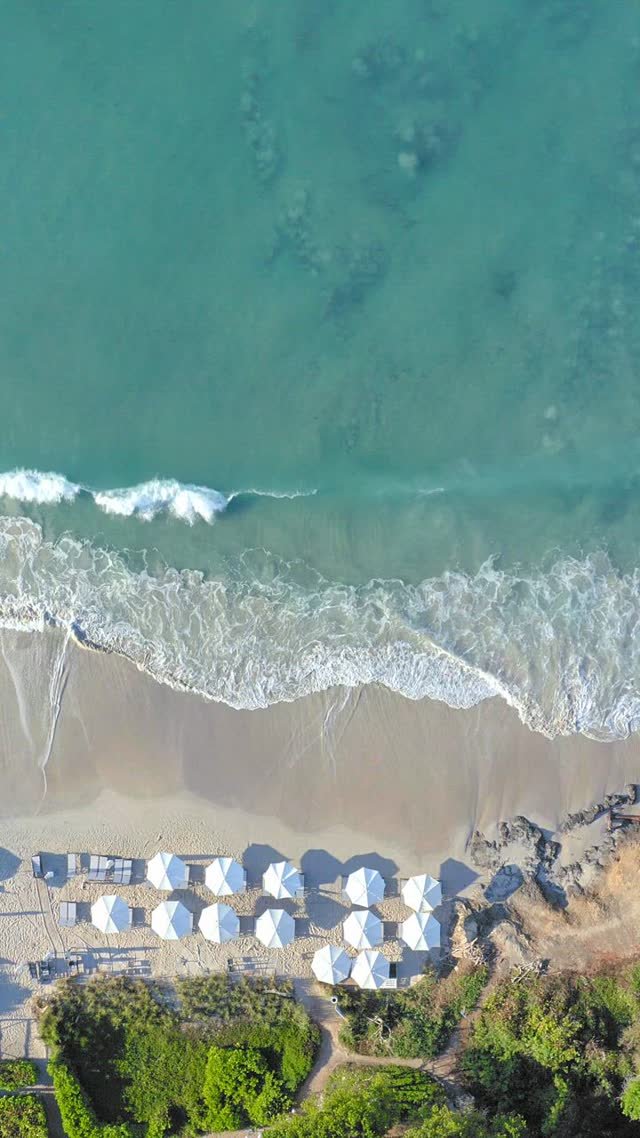 island_shore_drone.mp4128 MB
TXTisland_shore_drone.txtdescription
JSONisland_shore_drone.jsontop 50 comments
JPGisland_shore_drone.jpgthumbnail
INFOisland_shore_drone.info.jsonfull metadata
4 FILES · PER URL
Extra files
The description, the most-liked comments, the thumbnail and the info file come down beside the video under its name — just once, even for five clips.
- Description .txt
- Comments .json
- Thumbnail .jpg
- Metadata .info.json
Local Disk (C:)38 GB free
!Disk space is low! At least 2 GB is recommended for downloading + processing.
Processing completeisland_shore_drone.mp4 · Downloads
AUTOMATIC
Notification and disk warning
A Windows notification arrives when a long job finishes, and a warning appears when free space runs low — temporary files can be many times larger.
- Notify when the job finishes
- Disk space warning · 2 GB
STEP 05 · FILE
File name & metadata
How you find what you need after downloading hundreds of videos: the file's name, the folder it goes into and the details embedded inside it.
3SETTINGS
File name templateTitle
8 LAYOUTS
File name template
Title, channel and date in the order you like; «Channel/ folder» makes a sub-folder for each channel. The date is written as 2026-05-13, so Windows sorts files by date.
- Title
- Channel - Title
- Title - Channel
- Date - Title
- Date - Channel - Title
- Channel/ folder
- Link N/ folder
- Link prefix
Name and metadata2 SETTINGS
Manual — the name you type
Custom file name
titleCascade: Waterfall 🌊 / 4K?
MP4
MANUAL · EMPTY · AI
Title mode and custom file name
You type the name, or the video's title is used; characters Windows will not accept are removed, while letters from any alphabet stay.
- Manual
- Empty — video title
- AI title
Title
Artist
Description
Year
 Properties › Details
Title
Artist
Description
Year
4 FIELDS
Embed video metadata
Title, artist, description and year are written inside the file; Plex and Jellyfin read these details, not the file name.
- Title
- Artist / producer
- Description
- Year
EVERY STEP
Platform presets
Save every setting under a name; one video, five separate outputs for five platforms.
3SETTINGS
Addressyoutube.com/watch?v=interview-full
✓TikTok vertical subtitledvertical
✓YouTube longlandscape
✓Audio onlyMP3 320
Presets to queue: 0queue: 0 jobs
1 VIDEO · N OUTPUTS
Multi-platform download
Tick the presets, press one button and each becomes a job of its own: a short vertical cut of the interview for TikTok, the full landscape version for YouTube, the audio alone for the podcast.
- TikTok vertical subtitled
- YouTube long
- Audio only
- The video downloads once
Save and load2 SETTINGS
Vertical 9:16Blurred + close-up1080pBold Banner · MiddleNormaliselogo.png
Preset name
✓TikTok vertical subtitledvertical · 1 media file · subtitles on
Load
ALL SETTINGS · MEDIA INCLUDED
Save a preset
Format, quality, subtitles, audio, speed and overlays become one preset, with logo and intro files embedded inside. Clips and the address stay out.
- Format and crop
- Quality
- Subtitles
- Audio and speed
- Overlays
- Media files up to 50 MB
Preset: —Load
FormatLandscape 16:9
Quality4K
SubtitlesOff
Clips00:12:30 → 00:13:05 · 00:41:10 → 00:41:55kept
Addressyoutube.com/watch?v=island-shore-drone-4kkept
CLIPS ARE KEPT
Load a preset
You can load it even after typing the address and clips: only the settings change, and the clips and address stay where they are.
- Before loading
- Preset loaded
- Delete
MANY VIDEOS
Bulk URL
Send a list of links to the queue in one go; the shared settings apply to every video on the list.
3SETTINGS
1 youtube.com/watch?v=aaaa1111waiting
2 youtube.com/watch?v=bbbb2222waiting
3 youtube.com/shorts/cccc3333waiting
Add the list to the queue12 URLs added to the queue
12 URLs will be queued.The current settings will be used. Continue?CancelOK
CONFIRMATION WITH A COUNT
Confirmation and queue
Press the button and you are asked to confirm how many addresses counted as valid: write fifteen lines, see «12 URLs», and three were dropped. Once you confirm, the jobs go through the queue one at a time.
- 12 URLs will be queued
- One job at a time
- Notify when finished
List and shared settings2 SETTINGS
✓https://youtu.be/abc123
✓http://vimeo.com/12345
✕www.youtube.com/watch?v=abc
✓HTTPS://YOUTU.BE/XYZ
✕— group 2 —
✓https://www.youtube.com/shorts/cccc3333
6 lines0 valid
ONE ADDRESS PER LINE
The line rule
Paste the addresses one per line; every line starting with http:// or https:// becomes a job, and notes and blank lines are dropped.
- https://… accepted
- www.… dropped
- Note lines are dropped
- Duplicates are not removed
✓ CARRIED OVERFormat and crop
Source quality
Output mode · folder
Cookies · notifications
✕ NOT CARRIED OVERClip ranges
Burning subtitles
Background MP3
Custom file name
SHARED SETTINGS
Which settings carry over
Format, crop, quality, folder, cookies and notifications apply to every video; clip ranges, subtitles, the MP3 and a custom name do not carry over.
- 8 settings carry over
- 5 settings don't carry over